Software indicator and reporting
The Helmholtz Research Software Directory can be used to obtain a score according to the Helmholtz Software Quality Indicator. Please refer to the official website for details about the background, the counting mechanism, and the Q&A.
This document guides you through the process of rating your software and, if required by your research centre, submitting the rating for reporting purposes.
If you already have an existing software entry associated with at least one Helmholtz centre, you may skip directly to Starting the evaluation.
If you would like to know how to report the numbers for your Helmholtz centres, please have a look here.
How it works
To obtain a score for a research software, at least one Helmholtz research centre must be associated with the software entry. In the list of organisations, a Helmholtz research centre is marked by the Helmholtz "H" in the lower left corner. The scoring is computed from your answers in the criteria catalogue developed by the Task Group Helmholtz Quality Indicators for Data and Software Products. There is currently no automated process available.
Note: Linking a Helmholtz Institute will not enable reporting. Please add the corresponding research centre.
There can be only one evaluation per software and per year.
Submission process
If your research centre uses the Helmholtz RSD as its official tool to obtain software KPIs for yearly PoF reports, you need to supply the following information:
- software artefact
- contact person
- one PoF topic per associated research centre
- answer the entire questionnaire OR reach the minimum required score in an incompletely answered questionnaire
Once this information is provided, the software can be submitted. The reporters responsible for collecting the KPIs will then be able to link your software with the required metadata and report it.
It is possible to alter the added information after submission. In this case, the status of the software will be set to unsubmitted again. A notification will indicate this after changing relevant data. Please re‑submit as soon as the changes are finalised.
Instructions
Sign in and create a software entry
First, sign in to helmholtz.software using your institutional account and accept the terms of service and our data protection declaration.
Next, add a software entry by clicking the “+” icon in the upper‑right corner and selecting New Software:
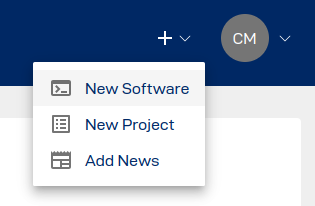
Follow the instructions to create a new software entry. This section covers the minimum requirements to rate a software entry. For more details about the addition process, refer to Adding software.
Adding a Helmholtz research centre
In the sidebar on the left, click Organisations and add your home organisation to the software entry.
You can report a software entry for multiple Helmholtz research centres by adding the corresponding centres to the organisations.
Starting the evaluation
In the sidebar on the left, navigate to Reporting. You will now see the “Software Quality Reporting” overview, which shows all evaluations, their status, and the results that have been started for your software entry.
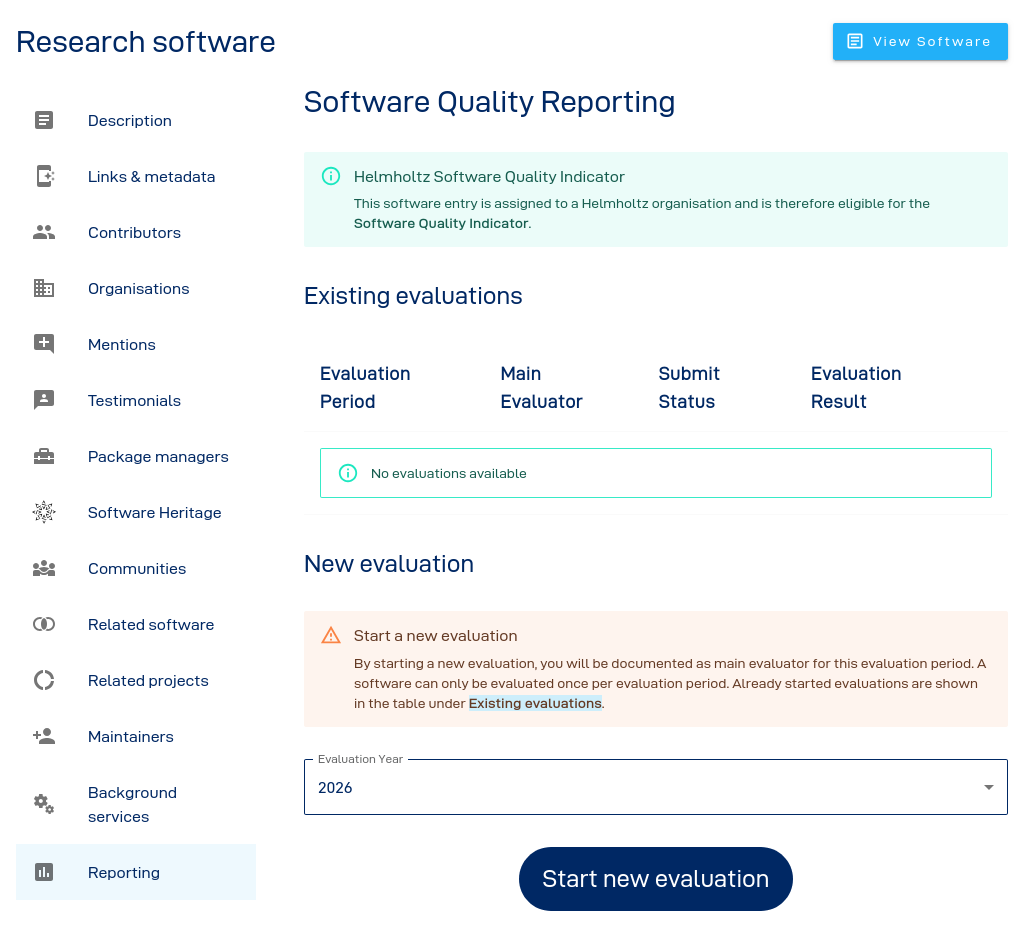
The current year is pre‑selected for a new evaluation. Click the Start new evaluation button to create a new evaluation.
Evaluate
You are now looking at the evaluation page for your software. The page contains the following information:
If your research centre does not use helmholtz.software as the official reporting tool and you only want to test how your software evaluates, you may scroll directly down to the questionnaire.
Software artefact
- Provide a link to an artefact of the software that you would like to evaluate.
- Required only if your centre uses helmholtz.software for reporting.
Reporting information
- Provide a contact person (typically the first author). A dropdown will allow you to select one of the added maintainers or contributors. Alternatively, you may enter a different name. The contact person should be associated with the corresponding Helmholtz centre.
- Provide one PoF topic for which your software should be linked in the reporting.
- Required only if your centre uses helmholtz.software for reporting.
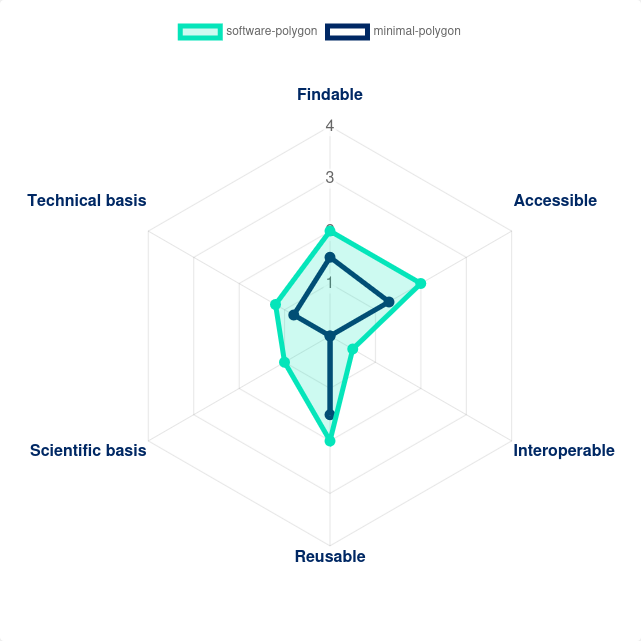
Radar plot
The radar plot visualises the evaluation results by plotting the dimension scores on their respective axes. The dark‑blue line represents the minimum score required for a software to be counted as scientific output. The mint‑coloured line shows the current score of your software entry. The radar plot is updated automatically.
Infobox
The infobox provides basic information about the evaluation and contains a link to the official FAQ pages.
The box also shows whether your software evaluation can be submitted. Submission is possible if all of the following criteria are fulfilled:
- an artefact link is provided
- the reporting information (contact person, PoF topic) is provided for at least one research centre
- the questionnaire reaches at least the minimum score or all questions are answered
Questionnaire
The questionnaire is located below the radar plot:
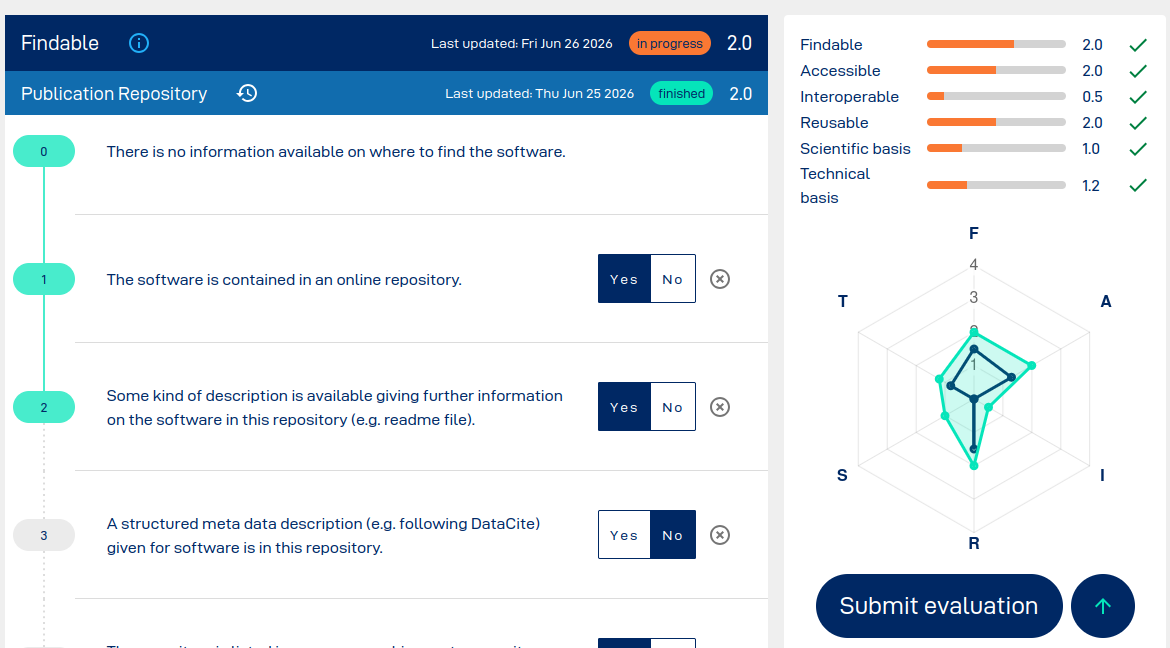
To obtain a score, answer each question with Yes or No. You can reset a question by clicking on the answer again or by clicking the “x” next to the buttons. For an attribute with answered questions, you can retrace the changes made by clicking on the history icon next to the attribute name.
On the left hand side, coloured level indicators visually show the counting mechanism.
On the right hand side, a sidebar displays the current status of the evaluation. Next to each individual dimension, an “x” or a check‑mark indicates whether your software reaches the minimum score for that dimension.
Submitting
When the minimum requirements for submission, including all required metadata, are met, the Submit evaluation button in the sidebar will be enabled:
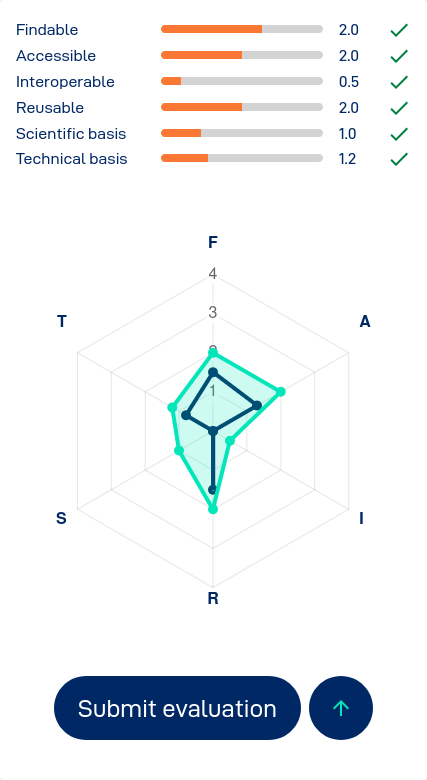
You can now submit the evaluation. You may return later to update the evaluation of the software. Please note that changes to the reporting may no longer be considered if the KPI reporting deadline for your centre has already passed.
Changelog
All changes made to the evaluation are logged and traceable for both individual attributes and the entire evaluation. Click on the Activity log button in the upper right corner to see past changes to your software evaluation.