Software indicator for reporters
This documentation is intended for those who gather KPIs for the reports of their research centres.
Prerequisites
Users that want to obtain the KPIs for their research centre need to have organisation maintainer rights. To see whether you already have maintainer access, sign in to helmholtz.software and visit your organisation under helmholtz.software/organisations. You are an organisation maintainer if you see the Settings menu entry:

If you are responsible for collecting the KPIs for your centre but you are not organisation maintainer yet, please contact us.
Opening the reporting page
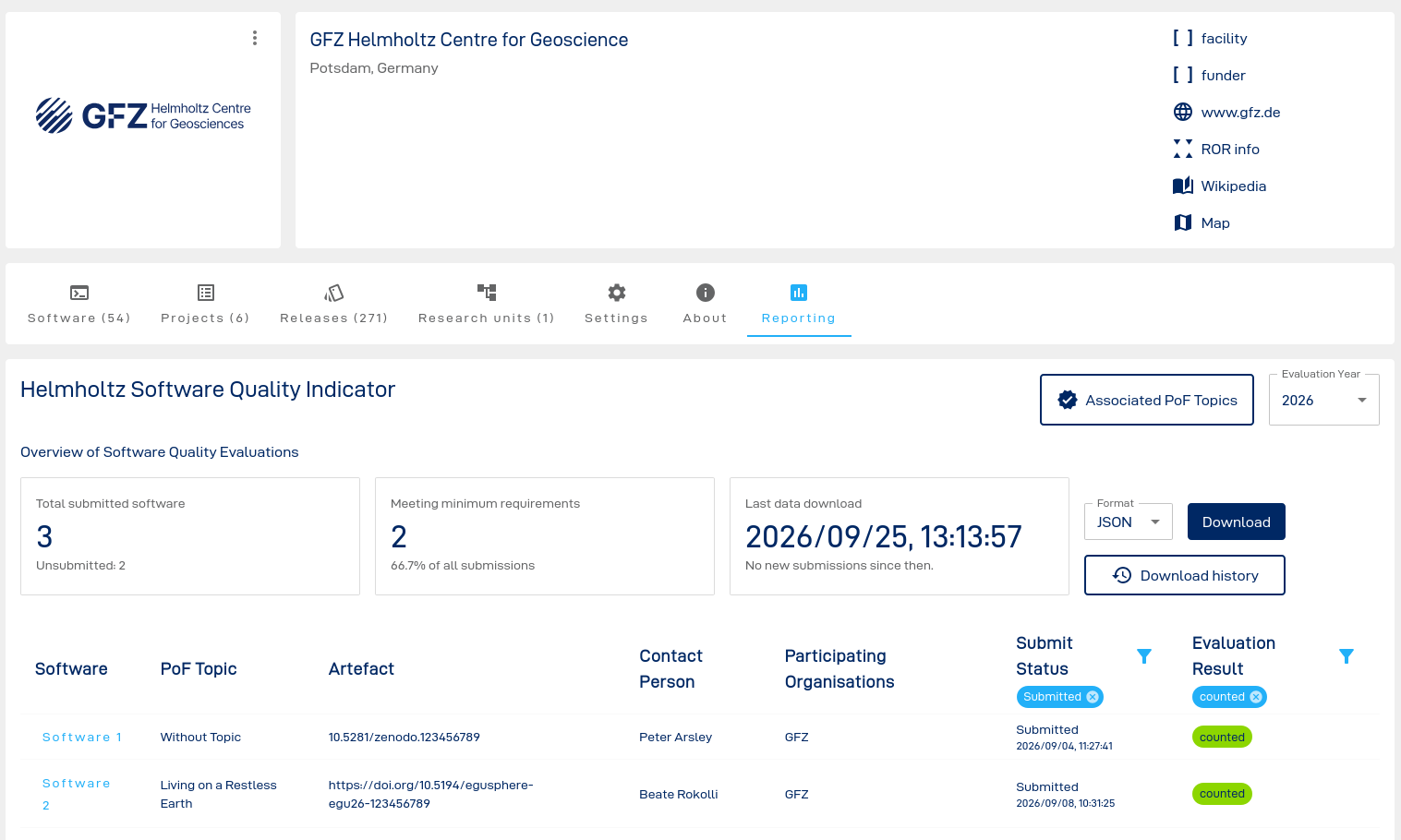
To open the reporting page, navigate to your organisation and click on the Reporting tab. You will see a view similar to this one:
Setting preferred topics for your research centre
To make it easier for RSEs to select the topic for their research software, you can set Centre specific PoF Topics. The topics for the centres are already pre-selected based on the information provided by the Helmholtz head office. You can modify them by clicking on the Associated PoF Topics button. This will open a dialogue:
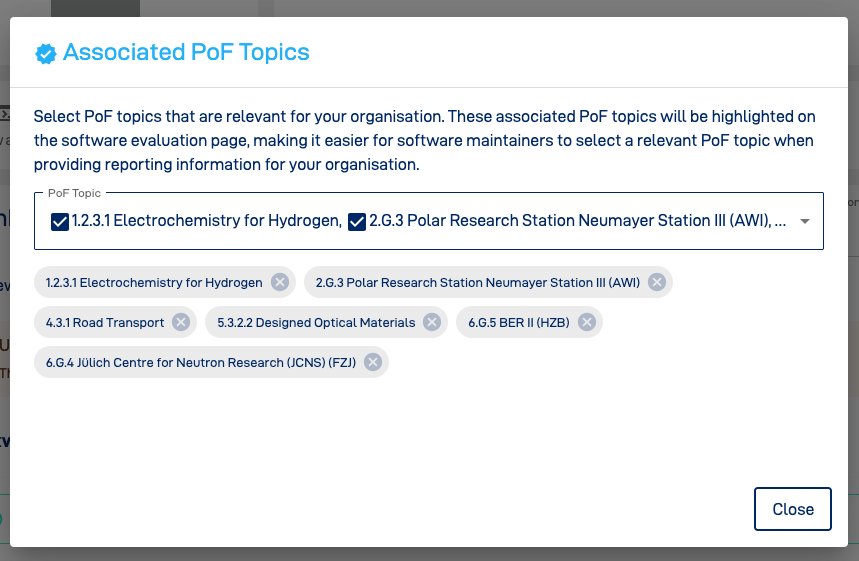
Click on the drop down to select or deselect PoF topics that are relevant for your research centre.
The list also considers program independent research under "8.9.9 Without Topic".
Obtaining the KPIs
The table at the bottom of the page shows the software entries that are associated with your research centre. By default, the list shows only those software entries which are submitted and counted.
Submitted means that the software maintainers completed the evaluation of their software and clicked the Submit button. This indicates that their software evaluation is complete and ready to be counted. If the software could not be submitted its status will be Not submitted.
Counted means the software entry meets the minium criteria of the Helmholtz Quality Indicator for Research Software and is eligible to be counted as research output. Software that does not meet the criteria is listed as not counted.
You can either report the numbers directly from this view, or download the data.
Data download
Click on the Download button to download the data. Available download formats are JSON and CSV. After selecting the format, the download is triggered by clicking the Download button again:

The downloaded data only contains software entries that are submitted and counted.
When triggering the download, a representation of the current software entries will be stored in the database and can be downloaded later again.
The downloaded data will look like this (json):
{
  "reporting_period": "2026",
  "report_date": "2026-10-06T09:34:31+02:00",
  "download_date": "2026-10-06T09:34:31+02:00",
  "software_entries": [
    {
      "software_name": "Software 2",
      "contact_person": "Beate Rokolli",
      "organisation": "GFZ Helmholtz Centre for Geoscience",
      "artifact_url": "https://doi.org/10.5194/egusphere-egu26-123456789",
      "pof_topic": "G:(DE-HGF)POF4-213",
      "counted": true,
      "submission_timestamp": "2026-09-08T08:31:25.767136+00:00",
      "submitted": true
    }
  ]
}
where
reporting_period: the reporting year, e.g. 2026 for software that was released in 2026report_date: the date on which the report was generateddownload_date: the date on which the file was downloaded
The csv file contains the same information in column format, the filename of the csv is evaluation-report-<reporting_year>-<reporting_date>.csv.
software_name,contact_person,organisation,artifact_url,pof_topic,counted,submission_timestamp,submitted
"Software 2","Beate Rokolli","GFZ Helmholtz Centre for Geoscience",https://doi.org/10.5194/egusphere-egu26-123456789,"G:(DE-HGF)POF4-213",t,"2026-09-08 08:31:25.767136+00",t
where the submit and counted statuses are indicated by t (true).
PoF Topic Identifier
In the downloaded file, the PoF topic is indicated by an identifier that was developed by DESY and FZJ. The structure is as follows:
G:(DE-HGF)POF<PERIOD>-<RESEARCH_FIELD><RESEARCH_PROGRAM><TOPIC>[<SUBTOPIC>]
where <SUBTOPIC> is optional.
G:(DE-HGF)POF4-211
- POF4: PoF period IV
- 2: Research field: Earth and Environment
- 1: Research program: Changing earth
- 1: Topic: The Atmosphere in Global Change
The entry can be found in DESY PUBDB. It is also possible to search PUBDB for topics, for this example:
Download history
A download history allows to go back in time and download older data sets. You can access the download history by clicking on the Download history button:
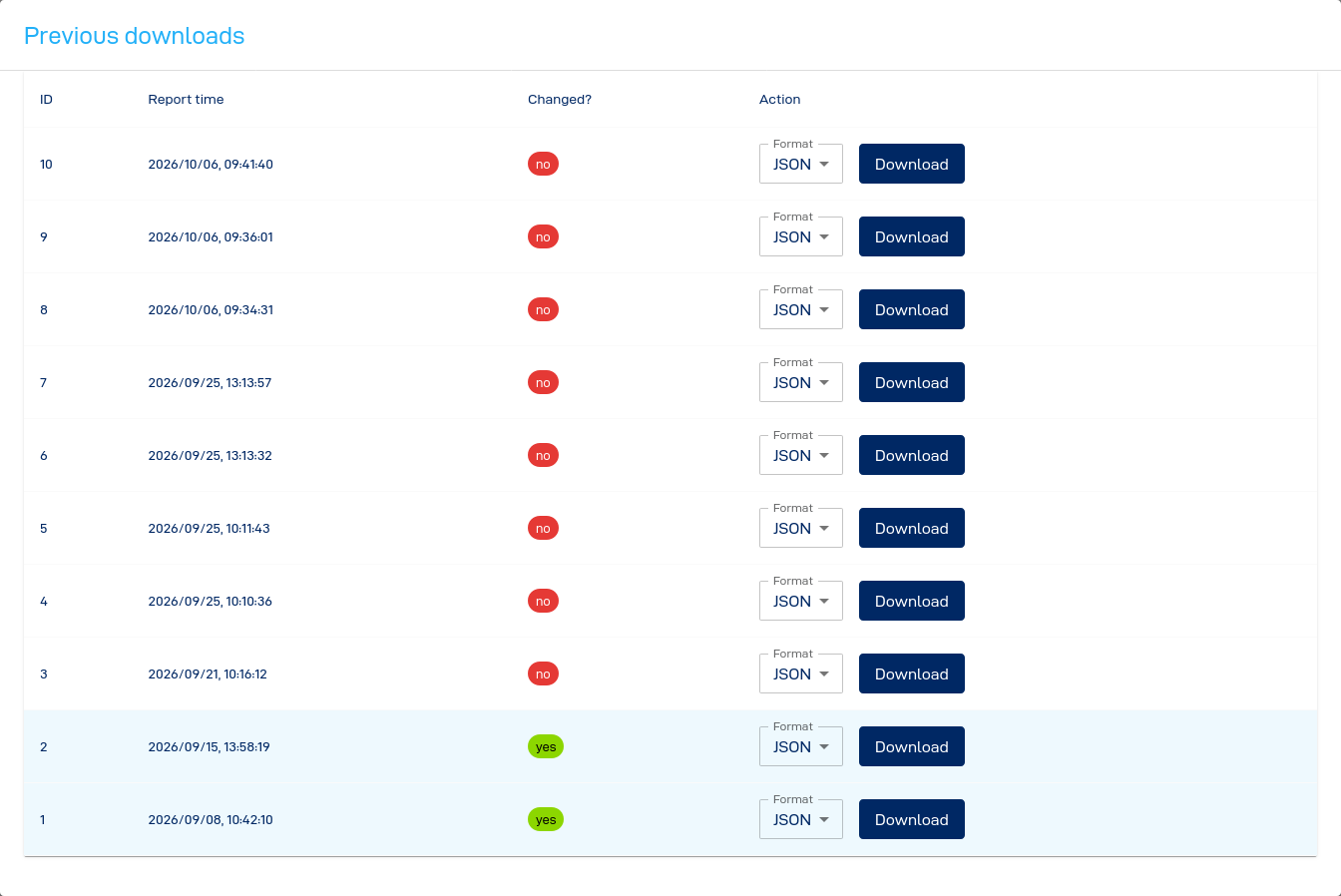
The list shows when data was downloaded. The column changed indicates whether submitted and/or counted software entries have changed since the previous download.